

The Embed SDK is available on paid plans.
What you can build with it
Embedding a TeamAI agent puts a chat window on your site. The Embed SDK makes that window part of your product. Your page can tell the agent who the visitor is, start the conversation at the right moment, and let the agent act inside your app.
What teams ship with this:
- A pricing page where the agent opens with “You are on the Pro plan. Want to see what Enterprise adds?”
- A support portal where the agent pulls the customer’s open tickets before answering.
- A dashboard where a visitor uploads an export and asks questions about it.
How it works
The embed code is one<div> and one <script>. The script renders your agent inside an iframe served from app.teamai.com and exposes a global object, tai, on your page. Every method below is called on an agent instance you get from tai.
Your page and the iframe talk over postMessage. The SDK only accepts replies from the iframe it created, and the iframe only accepts commands from the page that embeds it, so a third-party script on your page cannot drive the chat.
Get the embed code
- In TeamAI, open the agent you want to embed.
- Open the Channels tab and select Website.
- Choose the Scripts option. The iframe option renders the chat but does not load the SDK.
- Copy the snippet. It looks like this:
data-chatbot-id is the assistant ID. Every SDK call takes it as the first argument.
If you plan to upload files with the SDK, create an embed key on the same Channels page and add it as data-chatbot-embed-key. See File uploads.
Embed attributes
Set these on the<div>. The script reads them once, when it initializes the agent.
standard mode the iframe is width: 100%; height: 100%; min-height: 700px, so give the div a height. In popover mode the button and panel are position: fixed in the bottom-right corner, and the div’s position does not matter.
You can embed several agents on one page. Add one div per assistant and load the script once.
Quickstart
This page passes the visitor’s plan to the agent, sends a first message, and re-enables a button when the answer finishes.teamAIChatbotReady listener before the embed script runs. With defer, an inline script placed anywhere in the document runs first.
Readiness has three stages
Each stage unlocks different calls.teamAIChatbotReady fires once, after every agent on the page has reached the ready stage. Its event.detail.chatbots is a Map of assistant ID to instance.
sendMessage() waits for the conversation stage on its own, and for any in-progress identify() verification, so you do not need to call conversationReady() before sending. You do need it before getConversation(), because getConversation() reads whatever the iframe is showing at that moment.
Context variables
updateContext() merges an object into the agent’s context. Reference any key in the agent’s instructions as {{key}}, for example {{userEmail}}. The SDK sends the current context with every request, so a value updated between messages applies to the next message.
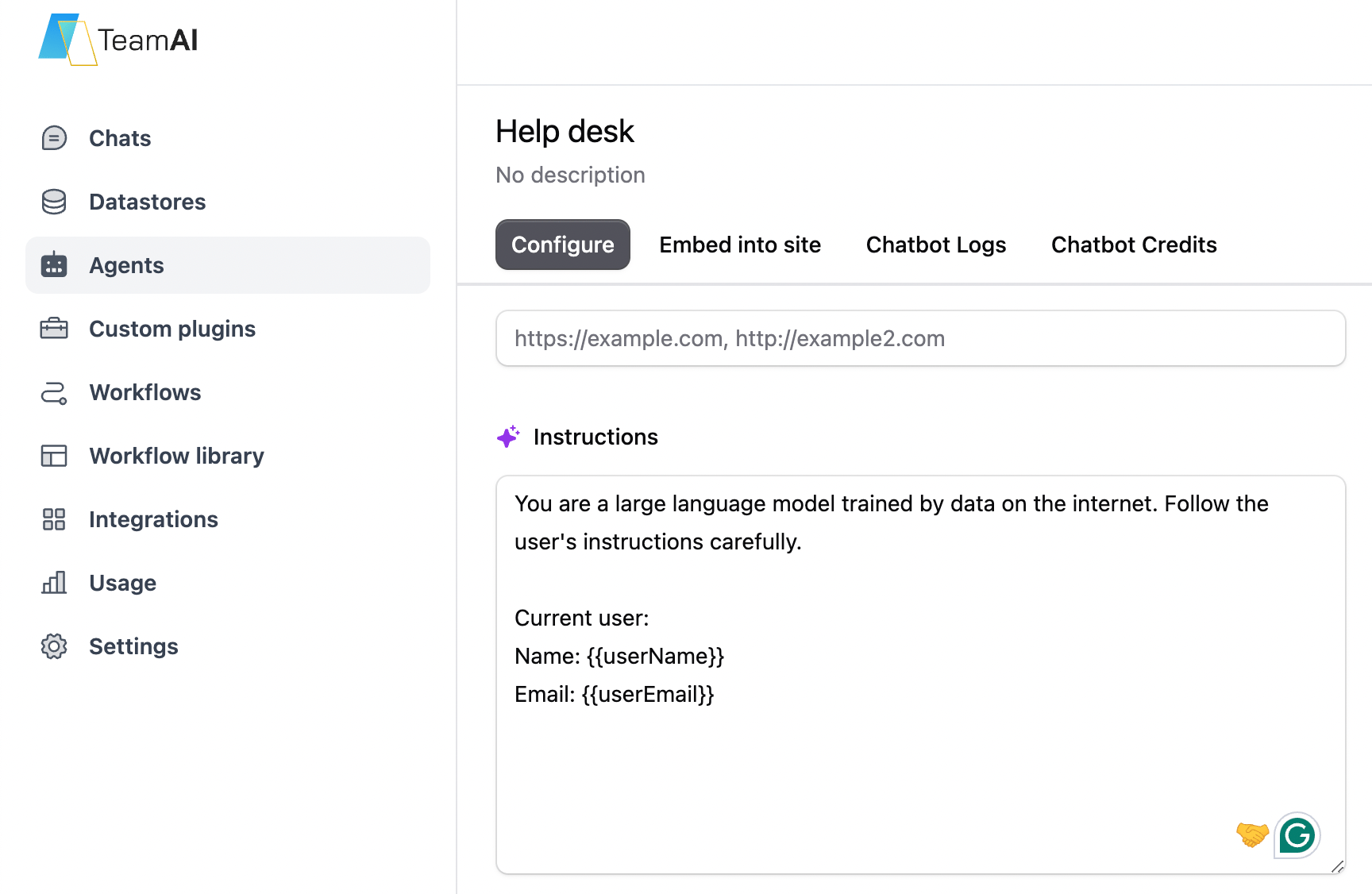
Updating context from the page
Single-page applications
The embed script scans the document once, when it loads. A div rendered later is not picked up automatically.tai.initializeAll() a second time. It re-initializes every div on the page and appends a second iframe to agents that already have one.
destroyInstance() removes the iframe and button, drops all listeners, settles any pending sendMessage() calls with code: "destroyed", and clears the upload cache for that assistant.
Next steps
- Messages and status: send messages, handle
busy, follow the answer. - API reference: every method, parameter, and return type.
- Client-side tools: let the agent call functions in your page.
- File uploads: give the agent a CSV or other file from your page.
- Identity verification: attach the chat to a signed-in user.
- Troubleshooting: debug mode and common failures.